How to verify a download: checksums, signed checksum files and ISO images
Tested onUbuntu 22.04, 2026-10-30
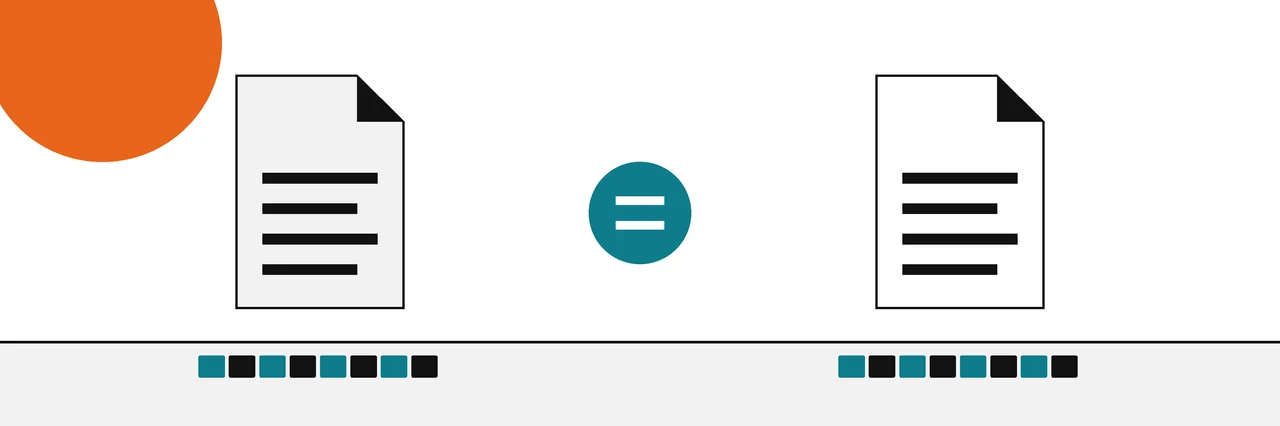
Find the SHA-256 value on the publisher's download page, compute the hash of your file with Get-FileHash on Windows, shasum -a 256 on a Mac or sha256sum on Linux, and compare. A match proves the file is unchanged; checking the publisher's signature on the checksum file proves who published that value.
To verify a download, you compute its checksum and compare it with the value the publisher lists. If every character matches, your file is byte for byte the file they released. If the publisher also signs its checksum file, you can go one step further and confirm the value really came from them.
This guide covers both steps on Windows, Mac and Linux, then walks through a signed SHA256SUMS file of the kind Linux distributions ship with their ISO images. If you are new to hashes, the checksums guide explains what the value is before you start.
You need
- The file you downloaded.
- The published checksum, and the name of its algorithm (almost always SHA-256 now).
- A terminal: PowerShell on Windows, Terminal on a Mac, any shell on Linux.
- For the signature step: the publisher's checksum file, its signature file and GnuPG (
gpg).
Step 1: find the published checksum
Look on the publisher's download page for a line labelled SHA-256, SHA256 or checksum. Larger projects publish a separate file instead. Common names are SHA256SUMS, CHECKSUM and file.iso.sha256. A SHA256SUMS file is plain text with one line per file: the hash, two spaces, then the file name.
Take the value from the publisher's own site, loaded over HTTPS. A checksum copied from a mirror, a forum post or a download portal only tells you that your file matches that copy, which may be the very thing you are trying to check.
Note the length. A SHA-256 is 64 characters, a SHA-1 is 40 and an MD5 is 32. If the page does not name the algorithm, the length tells you.
Step 2: compute the hash of your file
Open a terminal in the folder that holds the download, then run the command for your system.
Windows (PowerShell). Get-FileHash is built in. According to Microsoft's Get-FileHash reference, it uses SHA256 when you leave out -Algorithm, and also accepts SHA1, SHA384, SHA512 and MD5.
Get-FileHash .\file.iso -Algorithm SHA256
To let PowerShell do the comparison, paste the published value between the quotes. It prints True for a match and False for anything else.
(Get-FileHash .\file.iso -Algorithm SHA256).Hash -eq 'PASTE-THE-PUBLISHED-SHA256-HERE'
From Command Prompt, certutil -hashfile file.iso SHA256 gives the same value. The full walkthrough, including a right-click option for File Explorer, is in checking a file hash on Windows 10 and 11.
Mac (Terminal). macOS ships the shasum script. Always add -a 256: the shasum documentation lists SHA-1 as the default algorithm, so plain shasum gives a 40-character SHA-1 that will never match a SHA-256.
shasum -a 256 file.iso
Typing shasum -a 256 and then dragging the file into the Terminal window fills in the path for you. More options, including an MD5 check and a Finder Quick Action, are in checking a file hash on a Mac.
Linux. sha256sum is part of GNU coreutils and is installed on almost every distribution.
sha256sum example-1.0.iso
c398c2a60b8aa61ba2b801a36606c5bd4864d81b5e7d2a42e67b9a6491045ba2 example-1.0.iso
Windows prints the hash in capital letters and Linux and macOS in lower case. Hexadecimal is not case-sensitive, so C398C2 and c398c2 are the same value.
Step 3: check a SHA256SUMS file in one command
When a project publishes a checksum file, you do not need to compare anything by eye. Put the checksum file in the same folder as your download and run:
sha256sum -c --ignore-missing SHA256SUMS
example-1.0.iso: OK
-c reads each line of the file, hashes the named file and reports OK or FAILED. --ignore-missing skips the files listed that you did not download, which matters because one SHA256SUMS usually covers every image in a release. The GNU Coreutils manual documents both options, and notes that the command exits with a nonzero status when any check fails, so scripts can rely on it.
The test SHA256SUMS here listed two images, and only one was downloaded, so the second line was skipped. Here is a failure, from the same test file after one byte in it was changed:
example-1.0.iso: FAILED
sha256sum: WARNING: 1 computed checksum did NOT match
sha256sum: SHA256SUMS: no file was verified
The last line looks odd but is expected: with --ignore-missing, a file that fails does not count as verified, so no file passed. On a Mac, shasum -a 256 -c SHA256SUMS does the same check, and shasum accepts --ignore-missing too.
Step 4: verify the signature on the checksum file
A matching checksum proves your file equals the published value. It does not prove who published that value. If someone can change the download page, they can change the file and the checksum together. Signing closes that gap, and the guide to what a hash proves and what a signature adds explains why in more detail.
Projects that sign their checksums publish a signature file next to the checksum file, such as SHA256SUMS.gpg or SHA256SUMS.sign. Ubuntu's verification tutorial uses this command:
gpg --keyid-format long --verify SHA256SUMS.gpg SHA256SUMS
The first time, gpg will say it has no public key and print the key ID that made the signature. Import that key, either from the keyserver the publisher names or from a key file on its website, then compare the key's fingerprint with the one the publisher lists. Run the verify command again.
The output below is from a run on Ubuntu 22.04 with a stand-in checksum file and a demonstration signing key:
gpg: Signature made Fri Oct 30 22:52:36 2026 EDT
gpg:                using EDDSA key 4B414A0AE1C708CF642D68C9334040EEC5B2FA54
gpg: Good signature from "Example Release Signing <release@example.org>" [unknown]
gpg: WARNING: This key is not certified with a trusted signature!
gpg:          There is no indication that the signature belongs to the owner.
Primary key fingerprint: 4B41 4A0A E1C7 08CF 642D  68C9 3340 40EE C5B2 FA54
"Good signature" is the line that matters. The warning only means you have not marked the key as trusted in your own keyring; that is why you compare the fingerprint by hand. With one file name edited inside the signed checksum file, the same command reports a failure instead:
gpg: Signature made Fri Oct 30 22:52:36 2026 EDT
gpg:                using EDDSA key 4B414A0AE1C708CF642D68C9334040EEC5B2FA54
gpg: BAD signature from "Example Release Signing <release@example.org>" [unknown]
A bad signature means the checksum file is not the one the key holder signed. Stop there and do not use the download.
Order matters. Verify the signature first, then run sha256sum -c. Ubuntu's tutorial follows the same order: confirm the checksum file came from Ubuntu, then confirm your ISO matches it.
Verifying ISO images
Operating system images are the most common reason people verify downloads, because a damaged ISO can fail halfway through an install and a tampered one can compromise a whole machine. The routine is the one above:
- Download the ISO, the checksum file and its signature from the same release folder.
- Verify the signature on the checksum file with gpg.
- Run
sha256sum -c --ignore-missingon the checksum file in the folder that holds the ISO.
Ubuntu publishes SHA256SUMS and SHA256SUMS.gpg in each release directory. Other distributions follow the same pattern with their own file names and keys, so read the project's verification page for the exact names. If the check fails, download the image again from the official site before you try anything else, and check that you picked the right edition and architecture.
For a wider view of how network and operations teams use the same checks, see this walkthrough of SHA-256 checksums and verifying the source of a download.
Common problems
The hash is 40 characters long on a Mac. You ran shasum without -a 256 and got a SHA-1. Run it again with -a 256.
PowerShell says the file cannot be found. Run PowerShell in the folder that holds the download, or give the full path in quotes, for example Get-FileHash "C:\Users\you\Downloads\file.iso". Paths with spaces need the quotes.
sha256sum -c reports "no properly formatted SHA256 checksum lines found". The checksum file was saved in the wrong format, often as a web page instead of plain text. Download it again with "Save link as", or open it and check that each line is a hash, two spaces and a file name.
gpg says "Can't check signature: No public key". You have not imported the publisher's signing key yet. The message prints the key ID; fetch that key from the keyserver or key file the publisher names, and compare its fingerprint before trusting it.
The values differ. Check that you used the same algorithm and the exact file name the value belongs to, then download the file again. A mismatch on a fresh copy from the official site, with a good signature on the checksum file, means the file is not the one that was published.
What the result means
- Checksum matches, signature good, fingerprint matches the publisher's: your file is the one the publisher released. This is as strong as download verification gets.
- Checksum matches, no signature available: your file is intact and matches the published value. You are trusting the web page that showed you that value.
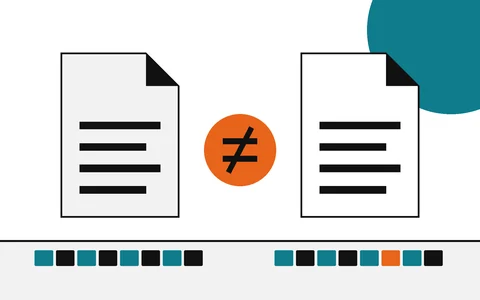
- Checksum does not match: your file is not the published file. It may be incomplete, a different version or altered. Do not run it.
- Bad signature: the checksum file was changed after signing. Do not trust any value in it.
The same check for content
AI models are downloads too, often several gigabytes each, and the same SHA-256 routine applies. Model hubs publish a SHA-256 for each large file, and some projects now sign their model releases. The guide to verifying an AI model download shows where to find those values and why the file format you choose matters as much as the hash.
Sources
Questions
Where do I find the checksum for a download?+
On the publisher's own download page or in a file beside the download, usually named SHA256SUMS, CHECKSUM or file.iso.sha256. Get it from the publisher's site over HTTPS, not from a mirror or a forum post.
Is it enough to compare the first and last few characters?+
No, compare the whole value. Letting a tool do the comparison, with sha256sum -c or a PowerShell -eq check, is faster and avoids misreading a character.
What does the gpg warning 'This key is not certified with a trusted signature' mean?+
It means you have not personally marked that key as trusted. The signature is still good; check that the key fingerprint matches the one the publisher lists on its website.
Do I need to verify downloads from an app store?+
Usually not by hand. App stores and system package managers check signatures and hashes for you before they install anything.
My checksum does not match. What now?+
Do not run or install the file. Check that you used the same algorithm and the right file version, download it again, and if it still fails, treat it as possibly tampered with.
Related reading
- How-to
Check a hash on Windows
Commands that ship with the system, nothing to install
- How-to
Check a hash on a Mac
One line in Terminal, already on every Mac
- Explainer
Hash vs digital signature
Integrity of the file versus who stands behind it
- Explainer
Checksum mismatch
What a different hash means, and what to do next
- How-to

Verify an AI model download
Check model files against the published digest