Check a file's hash on Windows 10 and 11 (PowerShell, certutil and File Explorer)
Applies toWindows, macOS and Linux
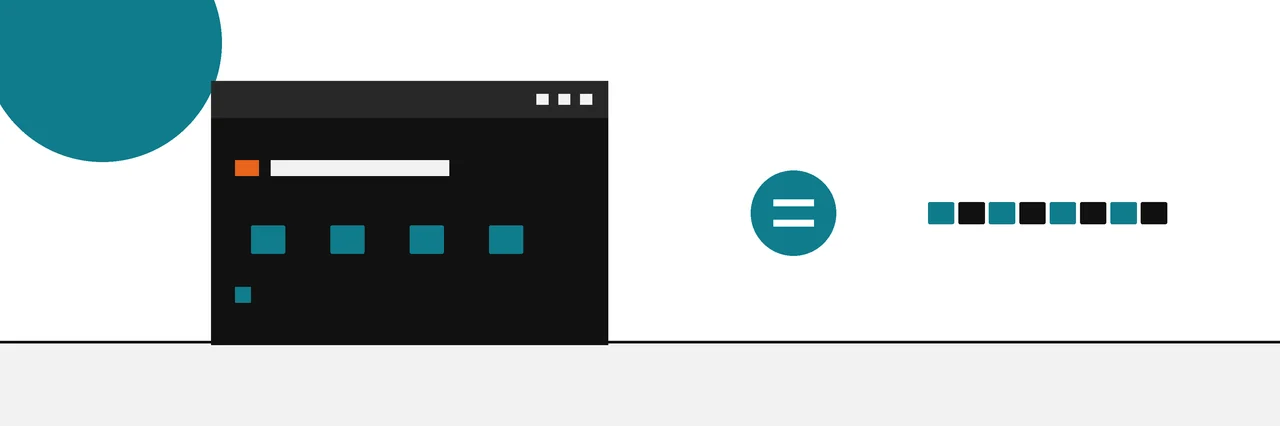
Open PowerShell in the file's folder and run Get-FileHash .\file.iso -Algorithm SHA256. Windows prints the file's SHA-256 hash. Compare it with the value the publisher lists; if every character matches, the file is byte for byte the one they released. certutil -hashfile does the same from Command Prompt.
Windows 10 and 11 can check a file's hash with nothing to install. Run one PowerShell command, compare the result with the value on the publisher's download page, and you know whether your copy is the exact file they released.
This guide replaces the old File Hashes tab that many people used for the same job; the page on HashTab and the commands that took its place has that history. Below: PowerShell first, then Command Prompt, then the options for File Explorer.
You need
- The downloaded file.
- The published hash and its algorithm name, usually SHA-256.
- PowerShell or Command Prompt, both included with Windows.
Check a SHA-256 with PowerShell
- Open the folder that holds the file in File Explorer.
- Click the address bar, type
powershelland press Enter. A PowerShell window opens in that folder. - Run
Get-FileHashwith the file name:
Get-FileHash .\file.iso -Algorithm SHA256
Windows prints three things: the algorithm, the hash and the full path of the file. Microsoft's Get-FileHash reference says SHA256 is the default when you leave out -Algorithm, so Get-FileHash .\file.iso gives the same result. Naming the algorithm anyway makes the command self-explanatory when you come back to it later.
The same reference lists the values -Algorithm accepts in Windows PowerShell 5.1, the version built into Windows: SHA1, SHA256, SHA384, SHA512, MACTripleDES, MD5 and RIPEMD160. To get an MD5:
Get-FileHash .\file.iso -Algorithm MD5
Microsoft's documentation shows the result in this form, using its own example of a SHA384 hash for an ISO file piped to Format-List:
Algorithm : SHA384
Hash      : 20AB1C2EE19FC96A7C66E33917D191A24E3CE9DAC99DB7C786ACCE31E559144FEAFC695C58E508E2EBBC9D3C96F21FA3
Path      : C:\Users\user1\Downloads\Contoso8_1_ENT.iso
Without Format-List, the same three fields print side by side as a table. Adding | Format-List puts each field on its own line, which is easier to read and to copy.
If the file name has spaces, put it in quotes: Get-FileHash ".\my file.iso". A tip for long paths: in File Explorer, right-click the file and choose Copy as path (on Windows 10, hold Shift while you right-click), then paste it after Get-FileHash.
Check several files at once
The reference describes -Path as "the path to one or more files", and wildcard characters are permitted. To hash every ISO file in the folder in one go:
Get-FileHash .\*.iso -Algorithm SHA256
Each file gets its own line with its algorithm, hash and path, which is handy when a publisher lists hashes for several editions of the same download.
If a file name contains square brackets, PowerShell may read them as a wildcard pattern and report that it cannot find the file. Use -LiteralPath instead, which Microsoft's reference says takes the path exactly as it is typed:
Get-FileHash -LiteralPath '.\setup [x64].exe' -Algorithm SHA256
Check a hash with certutil
Command Prompt has no Get-FileHash, but it has certutil, a certificate tool that also hashes files. The certutil reference on Microsoft Learn gives the syntax as certutil [options] -hashfile InFile [HashAlgorithm]:
certutil -hashfile file.iso SHA256
The supported algorithms are MD2, MD4, MD5, SHA1, SHA256, SHA384 and SHA512. Always name the algorithm at the end of the command, so you know exactly which hash you are looking at. certutil is an ordinary program, so the same command also works in a PowerShell window.
Use certutil when PowerShell is blocked by policy on a work machine, or inside an old batch script.
Add a hash check to File Explorer
File Explorer has no hash tab of its own. Two kinds of free tools add one.
7-Zip. If 7-Zip is installed, right-click a file and open the 7-Zip menu, then CRC SHA. The 7-Zip history file records that version 21.04 beta added CRC SHA / SHA-256 -> file.sha256, which writes a checksum file in the same format sha256sum uses, and Test Archive : Checksum, which checks one. MD5, SHA-384, SHA-512 and SHA3-256 were added in version 24.09.
Shell extensions. OpenHashTab and the maintained HashCheck Shell Extension add hashing to the Properties window, which is the closest thing to the old File Hashes tab. Our comparison of HashTab replacements for Windows, Mac and Linux sets out what each supports and its main limitation.
Compare the result with the published hash
Comparing 64 characters by eye is where mistakes happen. Let PowerShell do it: paste the publisher's value between the quotes.
(Get-FileHash .\file.iso -Algorithm SHA256).Hash -eq 'PASTE-THE-PUBLISHED-SHA256-HERE'
True means the two values are identical. False means they differ in at least one character. PowerShell's -eq ignores letter case for strings, so it does not matter that Windows prints capitals and many websites print lower case.
Check the length too. A SHA-256 is 64 characters, a SHA-1 is 40 and an MD5 is 32. If the published value is 32 characters long, the publisher listed an MD5, and you need -Algorithm MD5 to compare like with like.
Which algorithm to pick
Use the one the publisher lists, because a hash can only be compared with a hash made by the same algorithm. Today that is almost always SHA-256, which is also the Get-FileHash default.
If the page offers only MD5 or SHA-1, check it anyway; it still catches a damaged download. Microsoft's own reference adds a warning worth repeating: MD5 and SHA1 "are no longer considered secure" and should only be used for simple change validation, never for files that need protection from tampering.
What a match and a mismatch mean
A match means your file is byte for byte the file the published value describes. It was not damaged on the way and nothing changed it.
A mismatch means your file is different. Most mismatches are innocent: the wrong algorithm, a different version of the file, or a download that stopped early. Our guide to the usual reasons a checksum does not match walks through each cause and when a mismatch should be treated as tampering. Do not run or install the file until the values agree.
A match also has a limit. It proves the file equals the value you compared it with, not that the value came from the real publisher. If the download page itself was altered, both can be wrong together. Projects that sign their checksum files close that gap, and the full routine for verifying a download and its signed checksum file shows how to check one.
Common problems
"Cannot find path". PowerShell is looking in a different folder. Use the full path in quotes, or open PowerShell from the file's folder as in step 2.
You only want the hash itself. Print just that field with (Get-FileHash .\file.iso).Hash, which is handy for pasting into a ticket or a note.
The values are different lengths. You and the publisher used different algorithms. Match the algorithm to the length of the published value.
The file is still downloading. A browser may hold an unfinished download under a temporary name. Wait for it to finish, then hash the final file.
certutil and Get-FileHash disagree. One of them was given a different algorithm. Name SHA256 in both commands.
If you still have a question, the file hash questions and answers page collects the ones people ask most.
Sources
Questions
Does Windows 11 have a built-in hash checker?+
Yes. Get-FileHash in PowerShell and certutil -hashfile in Command Prompt both ship with Windows 10 and 11, so you do not need to install anything.
How do I get an MD5 hash on Windows?+
Add -Algorithm MD5 to Get-FileHash, or put MD5 at the end of the certutil command. Use it only when the publisher lists nothing stronger.
Why does PowerShell show the hash in capital letters?+
That is simply how Get-FileHash formats hexadecimal. A hash in capitals and the same hash in lower case are the same value.
Can I check a hash without opening a terminal?+
Only with an extra tool. Windows has no hash tab in File Explorer, but 7-Zip's right-click CRC SHA menu or a shell extension such as OpenHashTab adds one.
What does it mean if Get-FileHash and certutil give different values?+
Almost always that they were asked for different algorithms. Run both with SHA256 named explicitly and the values will agree.
Related reading
- How-to
How to verify a download
Start here: find the hash, compute yours, compare
- Explainer
Checksum mismatch
What a different hash means, and what to do next
- Explainer

MD5, SHA-1, SHA-256 compared
Which algorithm to rely on, and for what
- How-to
Check a hash on a Mac
One line in Terminal, already on every Mac