Check a file's hash on a Mac (shasum, md5 and a Finder Quick Action)
Applies toWindows, macOS and Linux
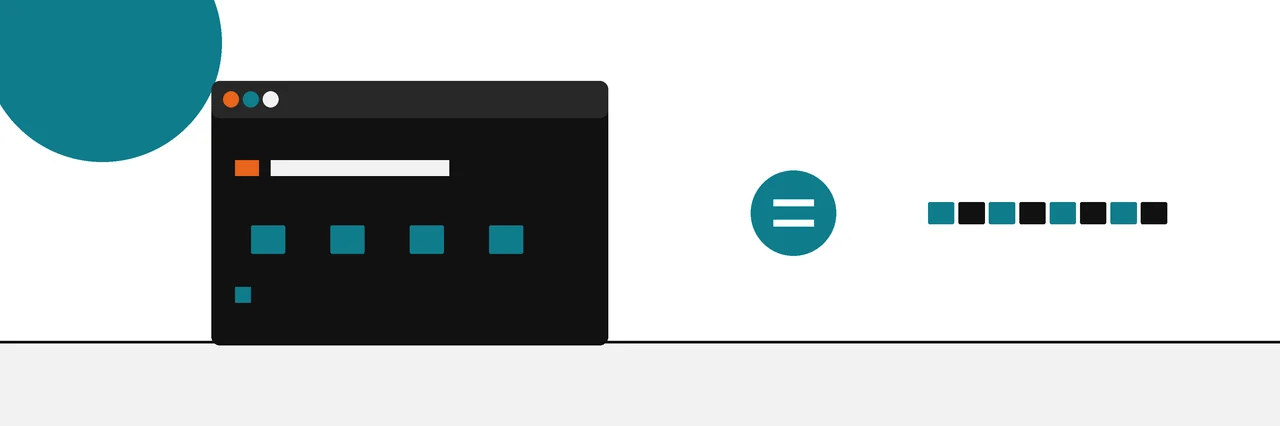
Open Terminal, type shasum -a 256 followed by a space, drag the file into the window and press Return. macOS prints the SHA-256 hash and the file name. Compare it with the publisher's value. For MD5, use md5 followed by the file path.
Every Mac can check a file's hash from Terminal with nothing to install. One command gives you the SHA-256; compare it with the value on the publisher's site and you know whether your copy is the exact file they released.
Mac users once did this with a Finder plugin; our page on HashTab, the old Finder and Explorer hash tab tells that story. This guide covers shasum for SHA-256, md5 for MD5, and a Quick Action that puts the check on the right-click menu.
You need
- The downloaded file.
- The published hash and its algorithm, usually SHA-256.
- Terminal, in Applications > Utilities.
Check a SHA-256 with shasum
- Open Terminal.
- Type
shasum -a 256followed by a space. Do not press Return yet. - Drag the file from the Finder into the Terminal window. Its full path appears after the command.
- Press Return.
shasum -a 256 ~/Downloads/file.dmg
The -a 256 part is the one that matters. The shasum documentation lists the algorithm choices as 1 (default), 224, 256, 384, 512, 512224, 512256. Leave out -a and you get SHA-1, a 40-character value that will never match a published SHA-256.
shasum prints the hash, two spaces, then the file name. This is the output of the same shasum script (version 6.02), run on a short test file:
1ab1a2bb8502820a83881a5b66910b819121bafe336d76374637aa4ea7ba2616 hello.txt
And this is what the same file gives without -a 256, which is the most common reason a Mac hash "does not match":
01ba98b3c90126f14577d5b1fdb1ffe9d3364469 hello.txt
Check an MD5 with md5
Some older projects still publish only an MD5. macOS has a separate md5 command:
md5 ~/Downloads/file.dmg
It prints the result in the form MD5 (file name) = hash. The macOS manual page for md5 also documents -r, which reverses the output so the hash comes first, and -c, which compares the digest with a value you give it. The same page warns that MD5 and SHA-1 "have been proven to be vulnerable to practical collision attacks", so use MD5 only when nothing stronger is published.
That manual page, in its macOS 15.8 and 26.7 editions, also lists sha256 and sha256sum commands. shasum -a 256 works on those versions and on older ones, so it is the command to learn.
Make a Finder Quick Action
A Quick Action puts a hash check on the Finder's right-click menu, which is about as close as a Mac gets to the old File Hashes tab. Apple's Automator guide to creating a Quick Action workflow gives the basic steps: choose File > New, select Quick Action, set the input type at the top of the workflow, add actions and save.
For a hash check:
- Open Automator and choose File > New, then Quick Action.
- At the top, set the workflow to receive files or folders in Finder.
- Find the Run Shell Script action in the Library and add it. Set Pass input to as arguments.
- Replace the sample script with:
/usr/bin/shasum -a 256 "$@" | /usr/bin/pbcopy
- Save it with a name such as "Copy SHA-256".
Right-click any file, choose Quick Actions, then Copy SHA-256. The hash and file name go to the clipboard, ready to paste next to the published value.
Compare with the published hash
Reading 64 characters by eye invites mistakes, so let shasum compare for you. Paste the published value, two spaces and the file name into an echo, and pipe it to shasum -a 256 -c. Run it from the folder that holds the file:
cd ~/Downloads
echo "PASTE-THE-PUBLISHED-SHA256-HERE  file.dmg" | shasum -a 256 -c
The script prints OK for a match. For a mismatch it prints FAILED and a warning. These lines are from the same shasum script run on the test file, first with the right value and then with the first four characters changed:
hello.txt: OK
hello.txt: FAILED
shasum: WARNING: 1 computed checksum did NOT match
For MD5, md5 -c PUBLISHED-VALUE file.dmg does the comparison. In the manual's own example, a value that does not match gets [ Failed ] added to the end of the output line. The same page says md5 exits with status 0 on success and 2 if a file does not have the same hash as the -c value, so scripts can test it with echo $?.
If the project publishes a whole checksum file, the routine for checking a download against a signed checksum file shows how to check it in one command and verify its signature. The steps on a PC are in our Get-FileHash and certutil guide for Windows.
Common problems
The hash is 40 characters. You ran shasum without -a 256. Add it.
"No such file or directory". The path has a typo or a space that was not escaped. Dragging the file into Terminal fills in the path correctly, spaces included.
Upper case on the website, lower case in Terminal. Hexadecimal is not case-sensitive, so AB12 and ab12 are the same value. shasum -c handles this for you.
The download was a .zip or .dmg that you have already opened. Hash the file exactly as the publisher hashed it, which is almost always the archive or disk image you downloaded. The app or folder inside it will have a different hash, or none at all.
The values still differ. Check that you used the same algorithm as the publisher and hashed the exact file the value belongs to, then download it again. The file hash questions page covers the other usual causes.
The same check for content
A SHA-256 changes completely when one byte changes, which is exactly right for a download and exactly wrong for a photo that has been resized or recompressed. For images, a different kind of fingerprint is used, one that stays close when the picture looks the same. The explainer on perceptual hashes versus SHA-256 for matching images shows where each one fits.
Sources
Questions
Why is my Mac hash only 40 characters long?+
Because shasum without -a 256 computes SHA-1, which is 40 characters. Run it again as shasum -a 256 to get the 64-character SHA-256 most publishers list.
Does macOS have a built-in SHA-256 checker?+
Yes, the shasum command in Terminal, used as shasum -a 256 followed by the file. Nothing needs to be installed.
How do I check an MD5 on a Mac?+
Run md5 followed by the file path. To have the Mac compare it for you, use md5 -c with the published value; a mismatch is marked Failed.
Can I check a hash without Terminal?+
Only with a little setup. An Automator Quick Action can run shasum for you from the Finder's right-click menu, as described above.
Does Gatekeeper already check my downloads?+
For apps, partly. Apple says Gatekeeper checks that downloaded software is from an identified developer, notarized and unaltered, but it does not check a disk image or archive against a hash a project publishes.
Related reading
- How-to
Check a hash on Windows
Commands that ship with the system, nothing to install
- How-to
How to verify a download
Start here: find the hash, compute yours, compare
- Explainer
Checksum mismatch
What a different hash means, and what to do next